 JiaRenXia
Help
An illustrated tutorial for family elders: every screen shows the real app — just follow along. Still stuck? Ask the author in the QQ group.
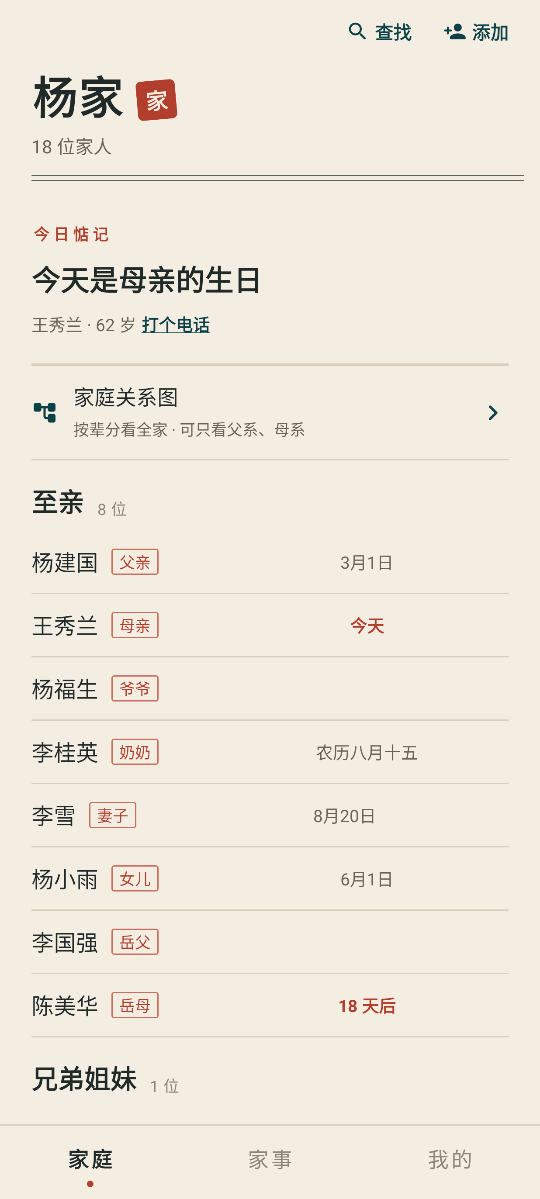
On opening: the whole family is here
Three tabs at the bottom: Family, Matters, Me. It opens on "Family" — everyone lives on this screen, with a small tag next to each name showing how they're related to you.
- "Add" at the top right — fill in a name to add someone
- Tap a name to see their profile
- "Search" at the top right finds people, handy when there are many
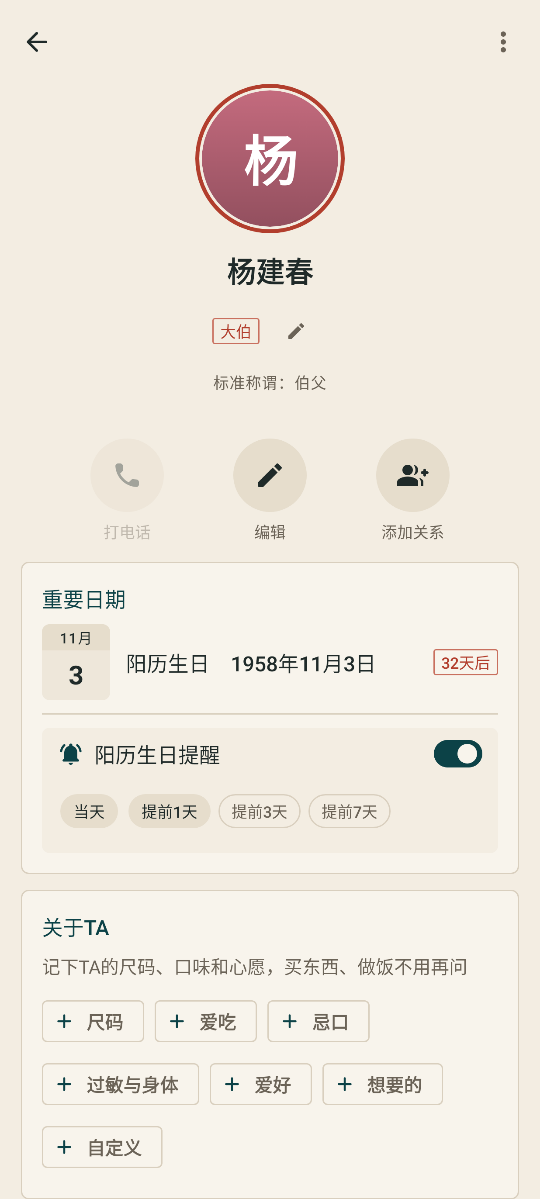
View someone's profile
Tap any family member to open their profile: big avatar, name and what to call them at a glance.
- "Call" dials them directly
- "Edit" changes name, birthday and other info
- "Add relation" links them to other family members (e.g. someone's son)
- Turn on birthday reminders — same day or 1, 3, 7 days ahead
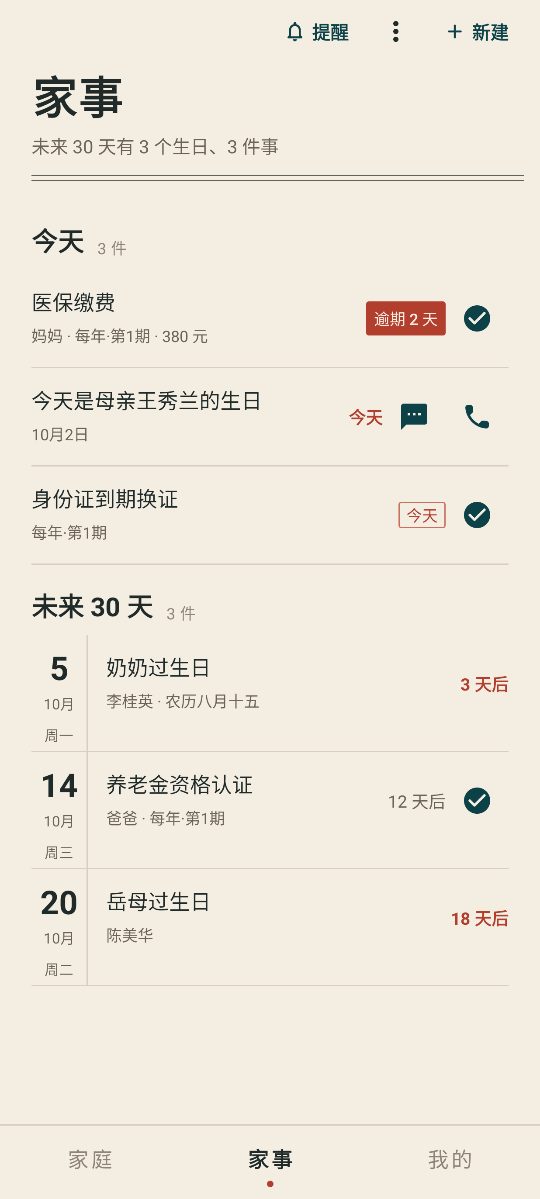
Today's to-dos and upcoming birthdays
Tap "Matters" at the bottom: today's date, whose birthday it is, what's due, plus the next 30 days below.
- Done with an item? Tap the ✓ on the right
- "Reminders" (the bell) in the top bar sets reminder times and which kinds to notify
- "New" at the top right records things like bills and insurance renewals
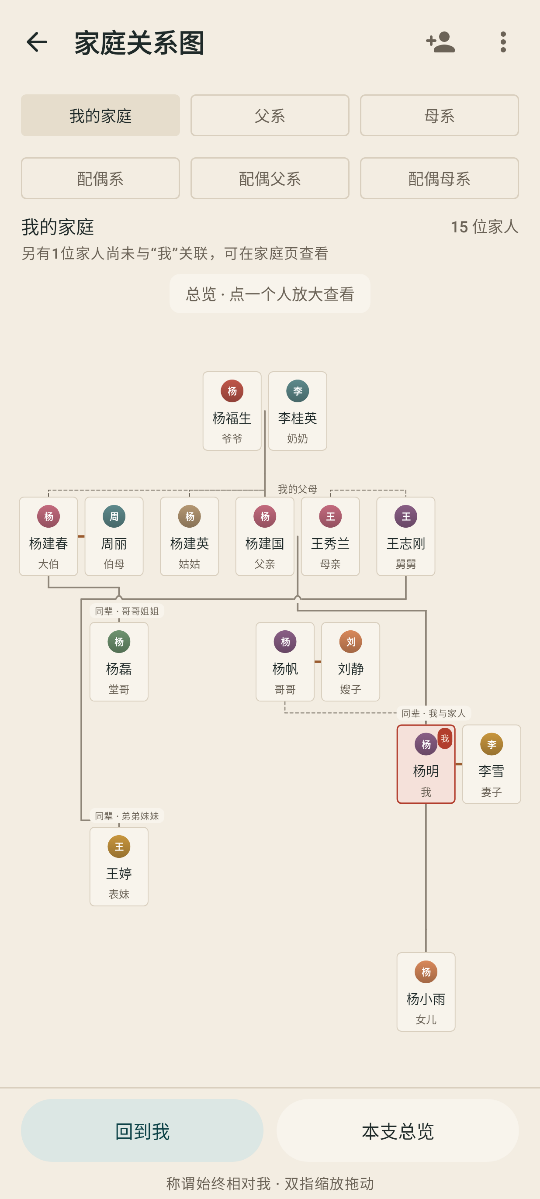
What to call everyone — the graph tells you
The "Family graph" entry on the Family tab draws everyone automatically.
- The red box is "me"; each name has its kinship title underneath
- The buttons on top can show only the paternal side, maternal side, or spouse's side
- Pinch with two fingers to zoom, hold and drag to pan; tap "Back to me" at the bottom to return
How kinship titles are computed — try an example
Once you've recorded how family members relate, JiaRenXia works out the proper Chinese kinship title from your point of view; if your family uses different terms, you can customize them.
Your father's elder brother — you call him:
伯父 (bófù)
Known to be older than your father, so he's 伯父; a younger brother of your father would be 叔叔.
The above is a demo. In the app, titles are derived automatically from the relationships you record — cousins, in-laws and grandparents' siblings included.
Text too small?
In "Me → Appearance & font size", drag the slider up — every screen in the app grows together.
Switching phones?
- On the old phone: "Me → Back up all data", set a password and remember it
- Send the backup file to the new phone (WeChat or a cable both work)
- Install JiaRenXia on the new phone, choose "Restore from backup", pick the file and enter the password
Note: uninstalling erases the data — always back up before switching phones or uninstalling.
Does JiaRenXia cost anything?
It's completely free. Family records, reminders, spreadsheet export and HD family graph images are all open — nothing is paywalled. If it helped you, tap "Support the author" at the top to buy the author a coffee.
Does data survive an uninstall?
No. Family data lives only on the phone itself — export a backup before uninstalling or clearing data.
Contact
For any questions, ask the author in the QQ group, or write to [email protected].
 Scan with QQ to join